
Customising your ratings view & columns
Tailor the ratings to the columns you actually use. Open Tools, choose Select Columns, then tick the columns you want and drag them into the order you like.
We know some of you like to focus on specific columns on the ratings and may want to hide others. You can do that from the Select Columns panel.
How to show or hide columns
- Click Tools in the top right of the ratings.
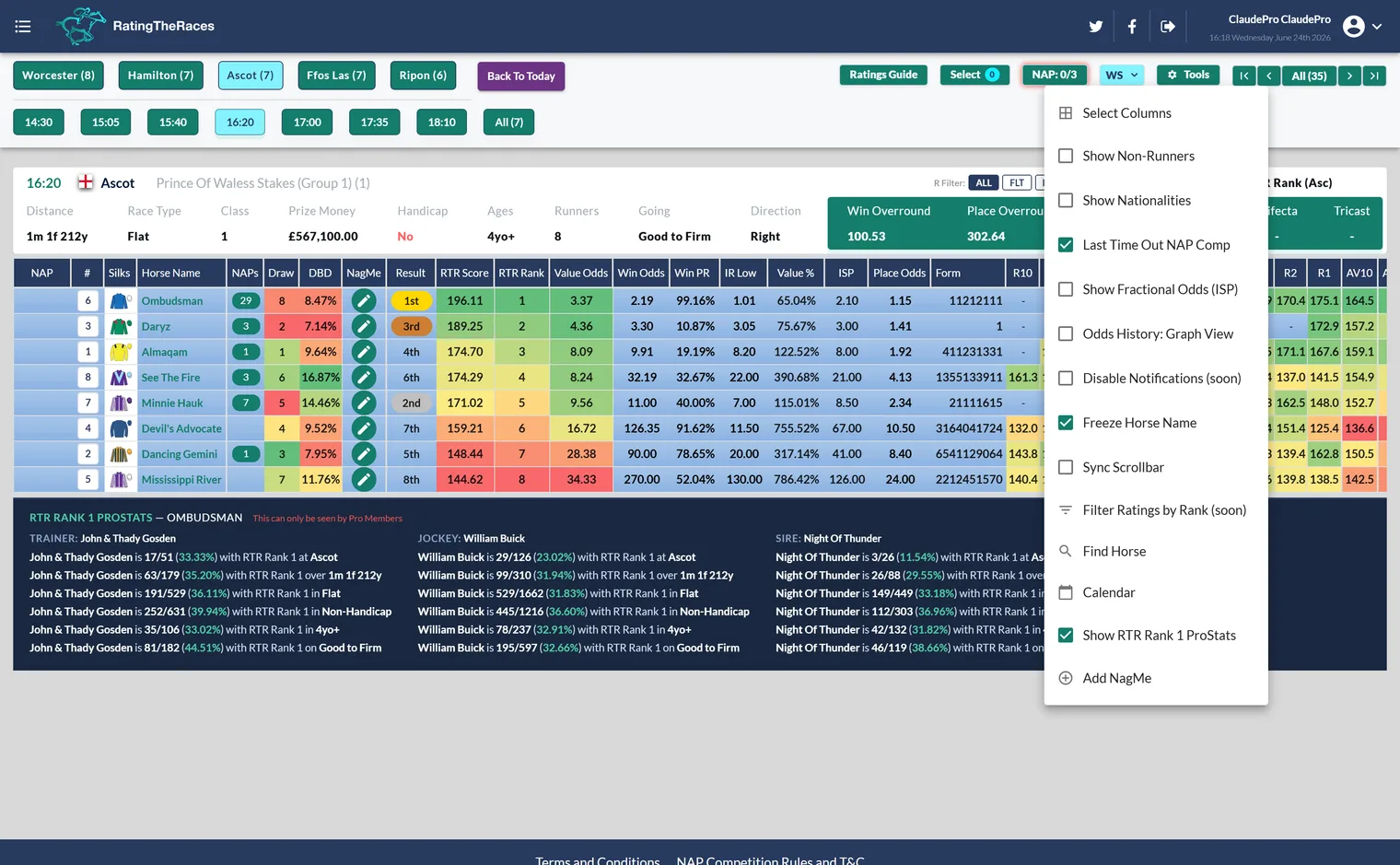
-
Click Select Columns to open the column picker.
-
Tick the columns you want to see and untick the ones you don't. You can also use the Basic, Punter or Professional presets, or Show All / Show None to start from one end.
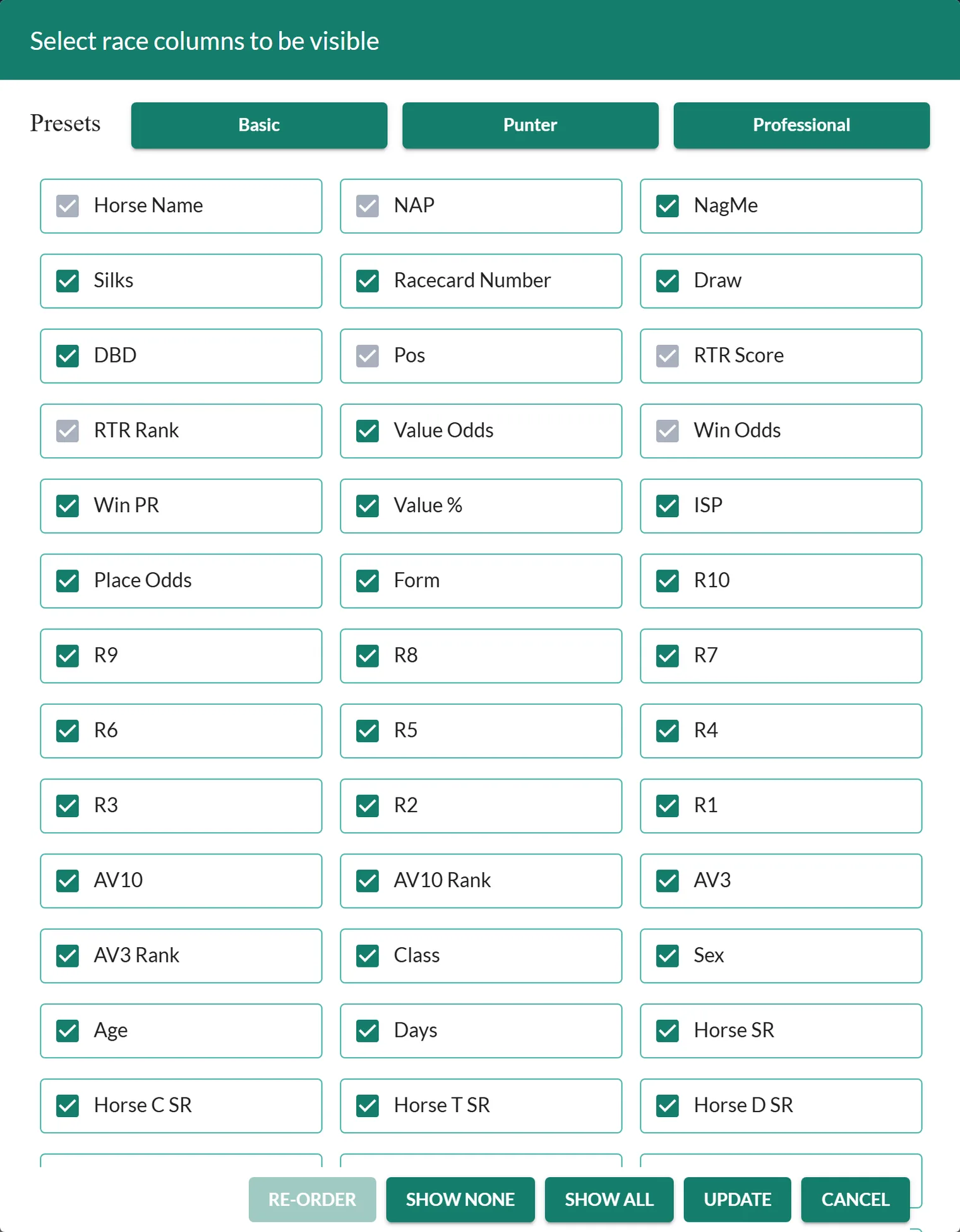
- Click Update to save your view.
Everything is available here, including the newer columns like OR and LWOR (see the ratings columns reference). A few columns are always on and can't be removed: Horse Name, the NAP dropdown, Pos (result), RTR Score, RTR Rank and Win Odds. Everything else is yours to add or hide.
Put the columns in your own order
You're no longer stuck with the standard left-to-right order. In the same Select Columns panel you can drag any column and drop it where you want it, so the columns you care about most sit exactly where you like to look.
- Open Tools → Select Columns as above.
- Drag a column by its tile and drop it into a new position.
- Click Update to save. (Changed your mind? Reset Order puts the columns back to the standard layout.)
Your layout, both which columns show and the order they're in, is saved to your account, so the ratings open your way every time until you change it again.
Decide what to keep
Not sure which columns are worth keeping on screen? The ratings columns reference explains every one, so you can hide the stats you never use and keep the ones you read most. Once you've trimmed the view, sort by any remaining column to rank the field. Trimming the grid also helps on slower devices, see The ratings won't load or display correctly if loading is sluggish.
Was this article helpful?