
Find Horse: look up any horse and choose what to do with it
1.0×
Tip: double-click or double-tap any word to read from thereRemembered a horse but it isn't running today? Find Horse looks up any horse by name, wherever you are, and asks what you want to do with it.
You do not need a horse to be on today's card to follow it. Find Horse searches every horse we hold by name, then gives you three things to do with it: set a NagMe, add it to your Season Notebook, or open its full history. It is a Premium and Professional feature.
Where to find it
- On the racecard: the Find Horse button sits in the bar at the top, beside Select, Shortlist and NAP.
- On the dashboard: under Today's Races on the left, below Build Your Own Card.
- On a phone: the racecard bar has no room for it, so it lives in the Tools menu instead. It is in Tools on the horse history pages too.

Look a horse up
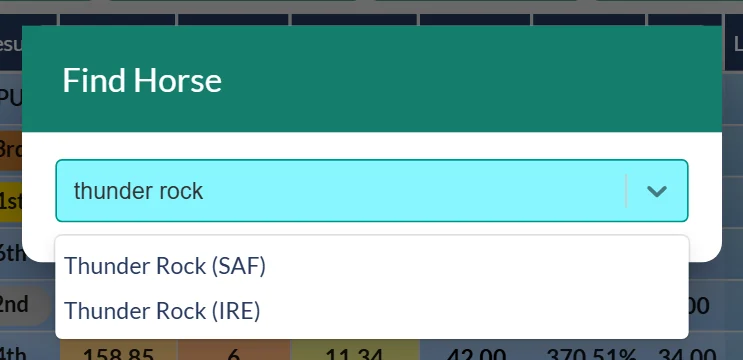
- Click Find Horse. A small box opens with Type name of a horse…
- Start typing. Matching horses appear as you type, each with its country in brackets, so Thunder Rock (IRE) and Thunder Rock (SAF) are easy to tell apart.
- Click the one you want.
Choose what to do with it
The box now carries the horse's name and asks What would you like to do?
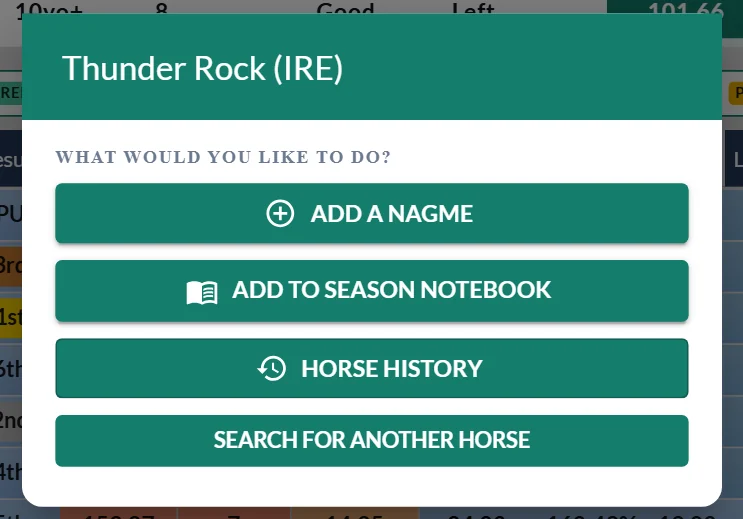
- Add a NagMe opens the usual NagMe box for that horse, right where you are: add a note, set it to delete itself after so many races or wins if you like, and press Create NagMe. We will then email you when it is next declared to run. See NagMe.
- Add to Season Notebook opens the Season Notebook box: pick one of the big races (the box suggests the likeliest ones for that horse), say whether you like it, it is your pick, you are against it or it is a form line, add your reason and press Add. A tick box sets a NagMe at the same time. See Your Season Notebook.
- Horse history opens the horse's full history page, where you can also use Find Races to see where it could run next.
- Search for another horse takes you back to the search.
The first two open over the page you are on, so you do not lose your place on the card. Press Cancel in either box and nothing is saved.
Find Horse is for Premium and Professional members. On a Free account the button carries a padlock and takes you to the Premium upgrade page. NagMe itself is open to every member: you can still add one from the pencil beside any runner on a racecard.
Was this article helpful?